> ## Documentation Index
> Fetch the complete documentation index at: https://docs.langtrace.ai/llms.txt
> Use this file to discover all available pages before exploring further.
# Langtrace Setup on Azure
> Host Langtrace on Azure AppService
> Github Repo: [langtrace-azure-setup](https://github.com/Scale3-Labs/langtrace-azure-setup)
## Requirements
1. Azure account
2. Clickhouse DB self hosted or managed service
3. Azure developer cli on your system. (installation [steps](https://learn.microsoft.com/en-us/azure/developer/azure-developer-cli/install-azd))
## Resources Created
| Resource Type | Name | Comments |
| ----------------- | --------------------- | ---------------------------------------------------------- |
| Resource Group | \[project-name]-rg | A resource group where all the resources will be deployed. |
| Postgres Server | \[project-name]-pg | Azure Postgres flexible server with backup on. |
| Postgres Firewall | \[project-name]-pg-fw | Firewall that is open to world. |
| App Service Plan | \[project-name]-sp | App service plan to run Langtrace app. |
| App Service | \[project-name]-app | App service to run Langtrace app. |
## Setup
> The following steps are for development purpose only and serves as a reference for production usecases. If you wish to setup production, make sure to scale the resources accordingly.
### Step 1: Clone and update configuration
#### Clone the repository using the following command:
```bash theme={null}
git clone https://github.com/Scale3-Labs/langtrace-azure-setup.git
cd langtrace-azure-setup
```
#### Update default variables (recommended)
Update the region and username and passwords of the admin user and Postgres DB based on your preference in the file `main.tfvars.json`.
You can also modify `variables.tf` based on your setup requirements.
### Step 2: Configure Authentication
Before deploying, you need to configure authentication for your Langtrace instance:
1. Open the [`main.tfvars.json`](https://github.com/Scale3-Labs/langtrace-azure-setup/blob/main/infra/main.tfvars.json) file.
2. Locate the authentication-related variables (e.g., `admin_email`, `admin_password`).
3. Update these variables with your desired authentication settings.
4. For additional authentication methods (e.g., Google OAuth, Azure AD), add the necessary variables to this file.
For detailed instructions on authentication options, refer to our [Authentication](/hosting/auth) guide.
### Step 3. Run the Deploy
Run the following command to initiate the deploy process
```bash theme={null}
azd up
```
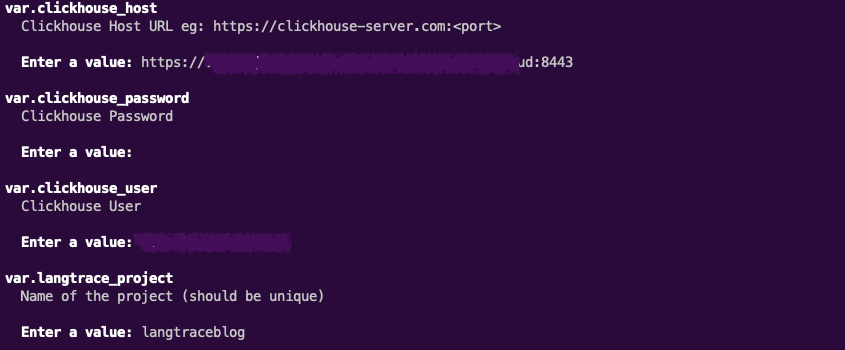
Now you will be asked to input the following variables. Give a unique name for langtrace\_project as it would be part of the self-hosted langtrace app URL.
### Step 4. Access the Langtrace app
Once you have provided the inputs, the deployment process will take about 15 minutes to provision all the resources. Once the deployment is successful, you will see the output with a URL as below.
```bash theme={null}
Outputs:
langtrace_url = "https://langtraceblog-app.azurewebsites.net"
```
Open the URL and login using admin credentials. Admin credentials are in the file `main.tfvars.json` under the key `admin_email` and `admin_password`.
You can now start using Langtrace in your application! 🎉
## Cleanup
To cleanup the resources, run the following command
```bash theme={null}
azd down
```
> While running this command, you will be asked for variables, you can enter anything or keep it blank.
Within five minutes, all the resources will be deleted from your Azure account.
## Troubleshooting
If you have freshly setup the app, please wait for 15-20 minutes for the app to be fully ready. Sometimes Azure app service takes a while to start the app. You can check the deployment logs by going to "Deployment Center" > "Logs" in the Azure portal.
You can also [contact us](/contact/contact-us) or create an issue on [langtrace-azure-setup](https://github.com/Scale3-Labs/langtrace-azure-setup) if the issue still persists.
## Next Steps
After successfully deploying Langtrace on Azure, ensure that you've properly configured your chosen authentication method(s) and created the necessary user accounts. If you need to modify the authentication settings post-deployment, you may need to update the App Service configuration in the Azure portal. Refer to the [Authentication](/hosting/auth) guide for detailed instructions on managing authentication.
 ### Step 4. Access the Langtrace app
Once you have provided the inputs, the deployment process will take about 15 minutes to provision all the resources. Once the deployment is successful, you will see the output with a URL as below.
```bash theme={null}
Outputs:
langtrace_url = "https://langtraceblog-app.azurewebsites.net"
```
Open the URL and login using admin credentials. Admin credentials are in the file `main.tfvars.json` under the key `admin_email` and `admin_password`.
You can now start using Langtrace in your application! 🎉
## Cleanup
To cleanup the resources, run the following command
```bash theme={null}
azd down
```
> While running this command, you will be asked for variables, you can enter anything or keep it blank.
Within five minutes, all the resources will be deleted from your Azure account.
## Troubleshooting
### Step 4. Access the Langtrace app
Once you have provided the inputs, the deployment process will take about 15 minutes to provision all the resources. Once the deployment is successful, you will see the output with a URL as below.
```bash theme={null}
Outputs:
langtrace_url = "https://langtraceblog-app.azurewebsites.net"
```
Open the URL and login using admin credentials. Admin credentials are in the file `main.tfvars.json` under the key `admin_email` and `admin_password`.
You can now start using Langtrace in your application! 🎉
## Cleanup
To cleanup the resources, run the following command
```bash theme={null}
azd down
```
> While running this command, you will be asked for variables, you can enter anything or keep it blank.
Within five minutes, all the resources will be deleted from your Azure account.
## Troubleshooting