> ## Documentation Index
> Fetch the complete documentation index at: https://docs.langtrace.ai/llms.txt
> Use this file to discover all available pages before exploring further.
# Langtrace on Railway
> Running Langtrace Client on Railway
## Requirements
1. [Railway](https://railway.app/) account
## Resources Created
| Resource Type | Comments |
| ------------------ | ----------------------------------- |
| Clickhouse Service | To store traces. |
| Postgres Service | For login and dataset related info. |
| Langtrace Client | Langtrace app with frontend. |
## Setup
Setting up Langtrace on Railway is now effortless. Just follow these simple steps:
### Step 1: Open the Railway Template
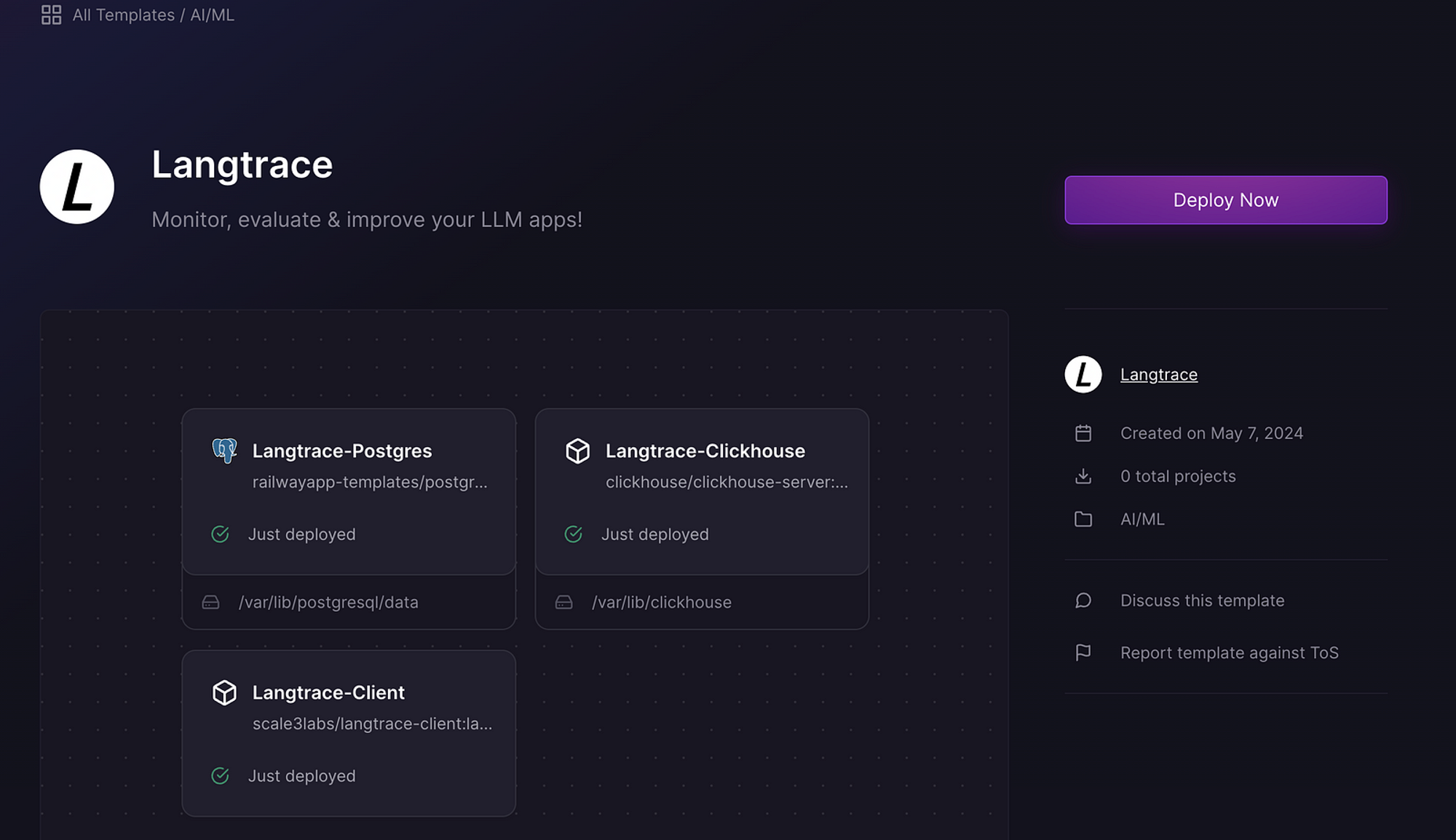
* Navigate to the Langtrace GitHub repository and locate the “***Deploy on Railway***” button within the [README file](https://github.com/Scale3-Labs/langtrace?tab=readme-ov-file).
[](https://railway.app/template/8dNq1c?referralCode=MA2S9H)
* Clicking on this button will direct you to the Langtrace Railway template deployment page.
### Step 2: Configure Authentication
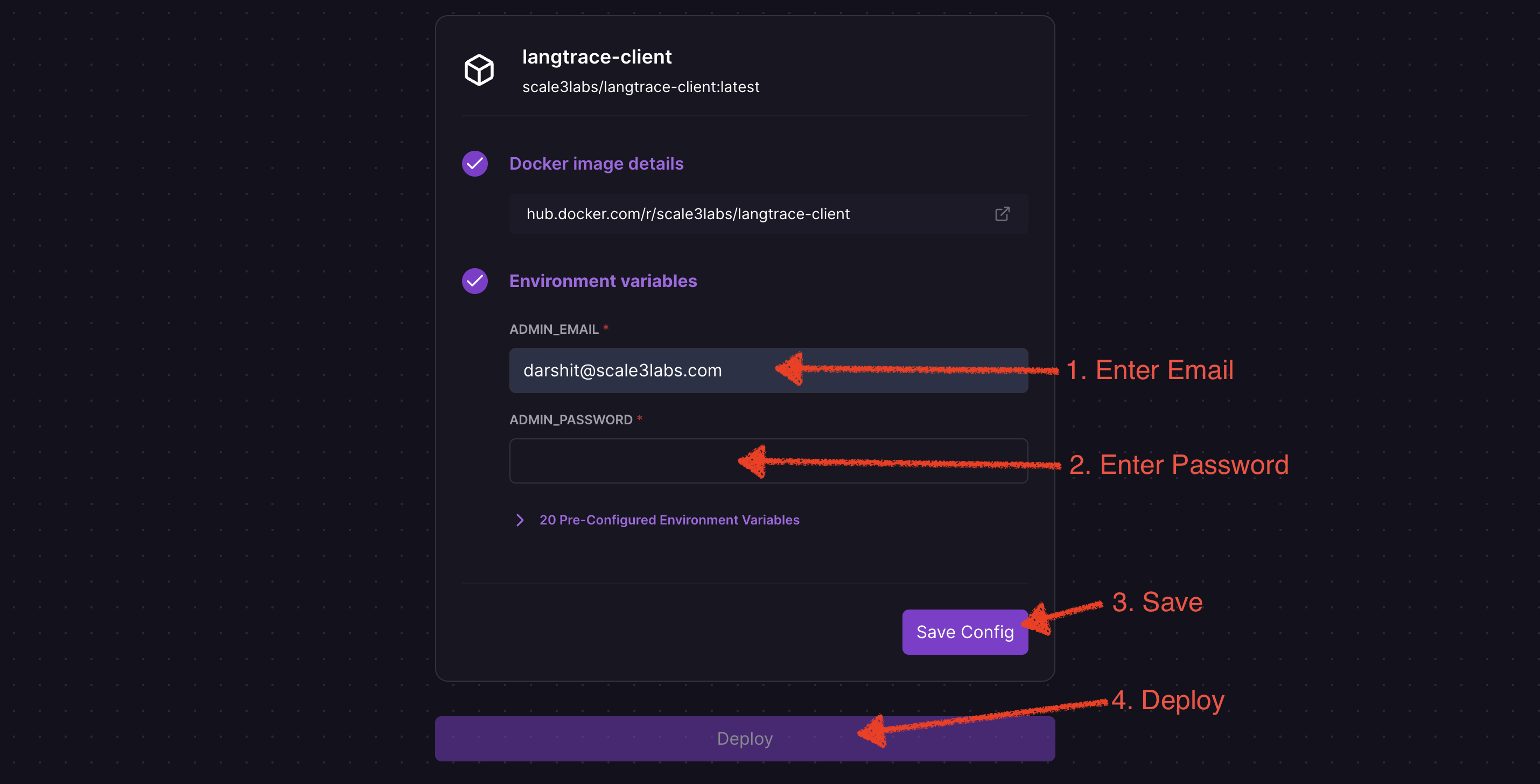
When deploying the template, you'll need to set up authentication for your Langtrace instance:
* Click "*Configure*" on the `langtrace-client` service.
* Add the following authentication-related environment variables:
* `ADMIN_EMAIL`: Your desired admin email
* `ADMIN_PASSWORD`: Your desired admin password
* For additional authentication methods (e.g., Google OAuth, Azure AD), you can add the necessary environment variables here as well. Refer to our [Authentication](/hosting/auth) guide for detailed instructions on configuring other authentication methods.
* Click "*Save Config*" **→** "*Deploy*".
### Step 3. Deploy the Template
* Click on the “*Deploy Now*” button.
* Click “*Configure*” on `langtrace-client` service and add admin email and admin password and click “*Save Config*” **→** “*Deploy*”.
### Step 4. Access Langtrace
* Once you start the deployment process, it may take around two minutes for Railway to bring up the services.
> If you want you can check the deploy logs of a particular service by clicking on the service and click “*View Logs*” under the Deployments tab.
>
>
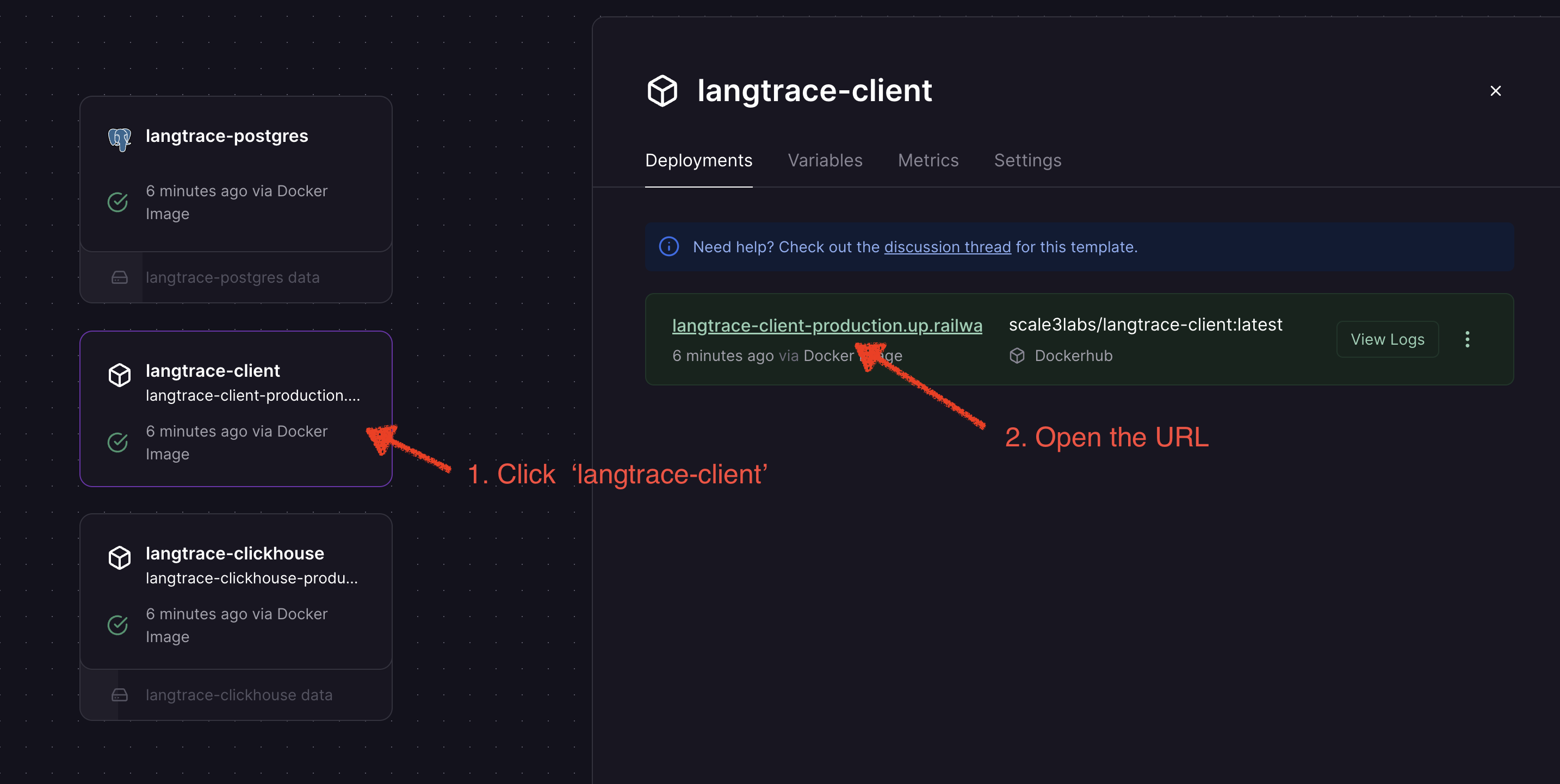
* Once all services are healthy, click on ‘langtrace-client’ service and open the URL to access the self-hosted Langtrace application.
Login to Langtrace using the previously supplied Admin email and password, and begin your journey for monitoring LLM apps by following the [quickstart guide](/quickstart).
## Cleanup
To cleanup the resources, click on *Settings* --> *Danger Zone* --> *Delete Project*.
## Troubleshooting
This generally occurs due to low memory allocated to the clickhouse service.
You can increase the memory allocated to the clickhouse service. This may
require you to upgrade your Railway plan from the free tier.
Click on the `langtrace-client` service --> you should be in Deployments tab --> Select Redeploy in the option of the active deployment to allow Railway to pull the latest version of the Docker image.
**OR**
Click on the `langtrace-client` service --> go to Settings tab -->
disconnect --> connect image --> change [source image](https://hub.docker.com/r/scale3labs/langtrace-client/tags) to any version of your choice --> Click Deploy
For example: `scale3labs/langtrace-client:1.3.1`

 ](https://railway.app/template/8dNq1c?referralCode=MA2S9H)
* Clicking on this button will direct you to the Langtrace Railway template deployment page.
](https://railway.app/template/8dNq1c?referralCode=MA2S9H)
* Clicking on this button will direct you to the Langtrace Railway template deployment page.
 ### Step 2: Configure Authentication
When deploying the template, you'll need to set up authentication for your Langtrace instance:
* Click "*Configure*" on the `langtrace-client` service.
* Add the following authentication-related environment variables:
* `ADMIN_EMAIL`: Your desired admin email
* `ADMIN_PASSWORD`: Your desired admin password
* For additional authentication methods (e.g., Google OAuth, Azure AD), you can add the necessary environment variables here as well. Refer to our [Authentication](/hosting/auth) guide for detailed instructions on configuring other authentication methods.
* Click "*Save Config*" **→** "*Deploy*".
### Step 3. Deploy the Template
* Click on the “*Deploy Now*” button.
* Click “*Configure*” on `langtrace-client` service and add admin email and admin password and click “*Save Config*” **→** “*Deploy*”.
### Step 2: Configure Authentication
When deploying the template, you'll need to set up authentication for your Langtrace instance:
* Click "*Configure*" on the `langtrace-client` service.
* Add the following authentication-related environment variables:
* `ADMIN_EMAIL`: Your desired admin email
* `ADMIN_PASSWORD`: Your desired admin password
* For additional authentication methods (e.g., Google OAuth, Azure AD), you can add the necessary environment variables here as well. Refer to our [Authentication](/hosting/auth) guide for detailed instructions on configuring other authentication methods.
* Click "*Save Config*" **→** "*Deploy*".
### Step 3. Deploy the Template
* Click on the “*Deploy Now*” button.
* Click “*Configure*” on `langtrace-client` service and add admin email and admin password and click “*Save Config*” **→** “*Deploy*”.
 ### Step 4. Access Langtrace
* Once you start the deployment process, it may take around two minutes for Railway to bring up the services.
> If you want you can check the deploy logs of a particular service by clicking on the service and click “*View Logs*” under the Deployments tab.
>
>
### Step 4. Access Langtrace
* Once you start the deployment process, it may take around two minutes for Railway to bring up the services.
> If you want you can check the deploy logs of a particular service by clicking on the service and click “*View Logs*” under the Deployments tab.
>
>  * Once all services are healthy, click on ‘langtrace-client’ service and open the URL to access the self-hosted Langtrace application.
 Login to Langtrace using the previously supplied Admin email and password, and begin your journey for monitoring LLM apps by following the [quickstart guide](/quickstart).
## Cleanup
To cleanup the resources, click on *Settings* --> *Danger Zone* --> *Delete Project*.
## Troubleshooting
Login to Langtrace using the previously supplied Admin email and password, and begin your journey for monitoring LLM apps by following the [quickstart guide](/quickstart).
## Cleanup
To cleanup the resources, click on *Settings* --> *Danger Zone* --> *Delete Project*.
## Troubleshooting