> ## Documentation Index
> Fetch the complete documentation index at: https://docs.langtrace.ai/llms.txt
> Use this file to discover all available pages before exploring further.
# Sending Traces
Tracing is a fundamental feature in LLM application development, enabling developers to gain deep insights into their apps' performance and behavior. By capturing detailed information such as input and output tokens, response times, model parameters, and user feedback, tracing allows you to optimize your LLM applications effectively. This guide will walk you through the process of sending traces from your application to Langtrace Cloud, helping you leverage this powerful tool for analysis and improvement.
## Step 1: Set Up Langtrace Cloud
To begin sending traces, you'll need to set up your Langtrace Cloud account:
1. Sign up by going to [this link](https://app.langtrace.ai/signup).
2. After signing up, create a new Project. Projects are containers for storing traces and metrics generated by your application. If you have only one application, creating 1 project will suffice.
3. Generate an API key. This key will be used to authenticate your application with Langtrace Cloud.
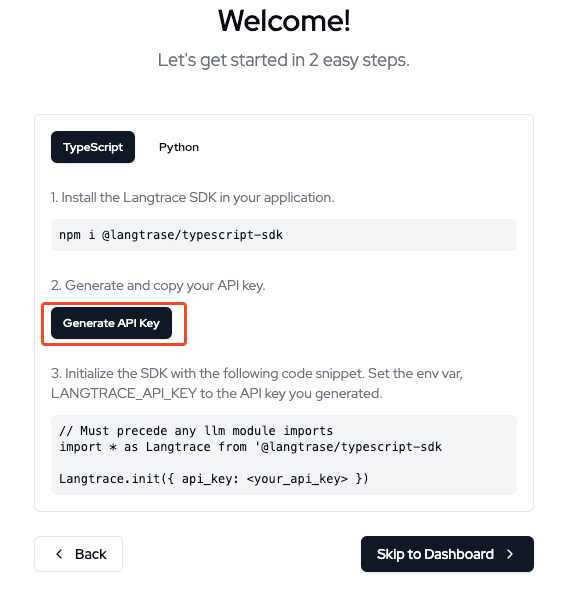 You may also create new projects and generate API keys for each of them
later.
## Step 2: Install and Initialize the SDK
To start sending traces, you need to install the Langtrace SDK and initialize it with your API key. Follow these steps:
```python Python theme={null}
# Install the SDK
pip install langtrace-python-sdk
# Import it into your project
from langtrace_python_sdk import langtrace # Must precede any llm module imports
langtrace.init(api_key = '')
```
```typescript TypeScript theme={null}
// Install the SDK
npm i @langtrase/typescript-sdk
// Import it into your project. Must precede any llm module imports
import \* as Langtrace from '@langtrase/typescript-sdk'
Langtrace.init({ api_key: ''})
```
Replace `` with the API key you generated in Step 1.
Make sure to initialize Langtrace before importing any LLM modules to ensure
all interactions are properly traced.
## Step 3: Create and Send Traces
Once the SDK is initialized, Langtrace will automatically capture traces from supported LLM integrations.
You may also create new projects and generate API keys for each of them
later.
## Step 2: Install and Initialize the SDK
To start sending traces, you need to install the Langtrace SDK and initialize it with your API key. Follow these steps:
```python Python theme={null}
# Install the SDK
pip install langtrace-python-sdk
# Import it into your project
from langtrace_python_sdk import langtrace # Must precede any llm module imports
langtrace.init(api_key = '')
```
```typescript TypeScript theme={null}
// Install the SDK
npm i @langtrase/typescript-sdk
// Import it into your project. Must precede any llm module imports
import \* as Langtrace from '@langtrase/typescript-sdk'
Langtrace.init({ api_key: ''})
```
Replace `` with the API key you generated in Step 1.
Make sure to initialize Langtrace before importing any LLM modules to ensure
all interactions are properly traced.
## Step 3: Create and Send Traces
Once the SDK is initialized, Langtrace will automatically capture traces from supported LLM integrations.
 ### Example: Sending Traces from an OpenAI Application
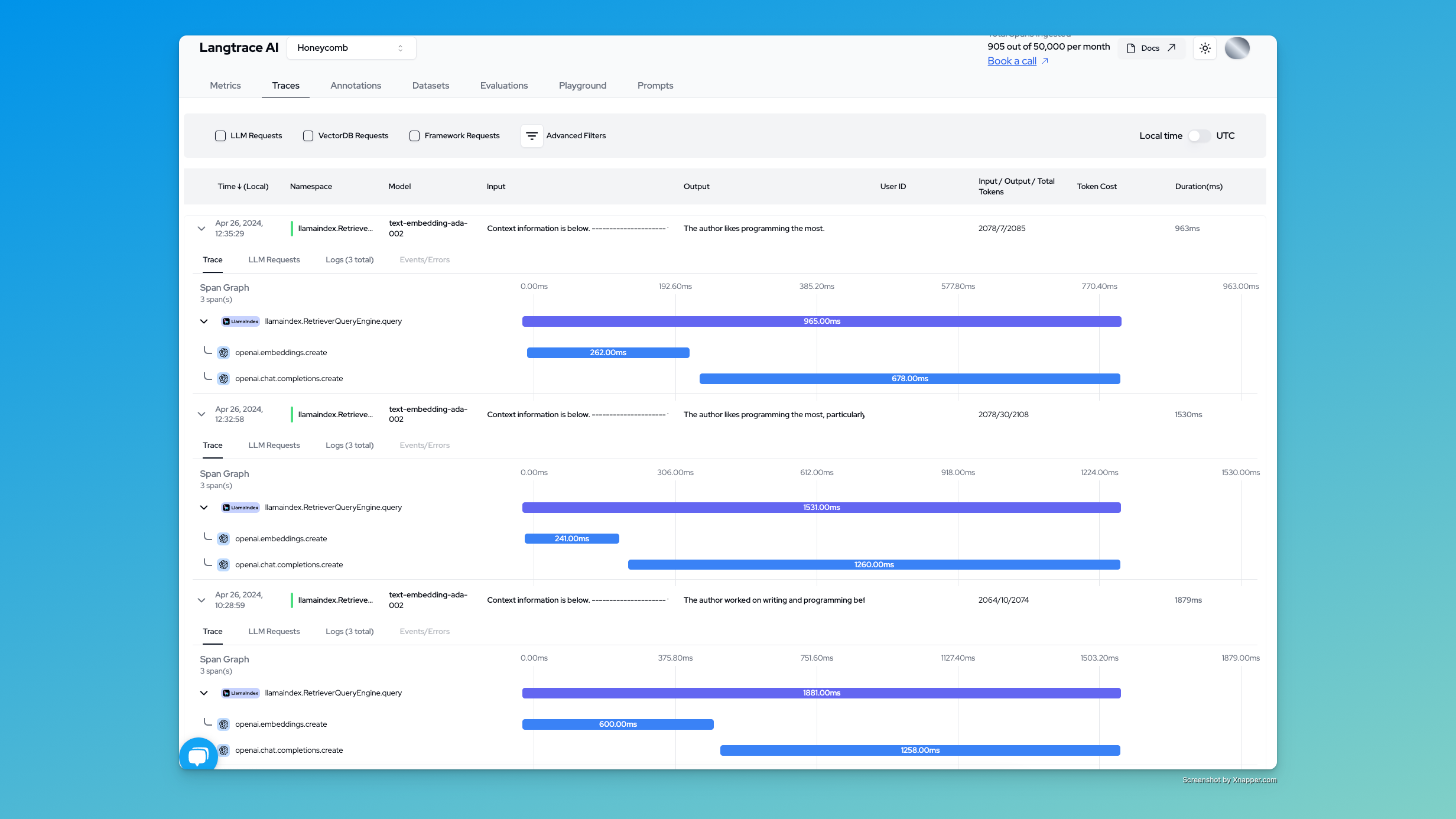
Here's an example of how to send traces from an LLM application using the OpenAI API. This example demonstrates how to use the Langtrace SDK to send traces from an OpenAI completion request.
Make Sure to pip or npm install the required packages before running the code.
```bash theme={null}
pip install --upgrade langtrace-python-sdk openai
```
```bash theme={null}
npm install @langtrase/typescript-sdk openai
```
```python Python theme={null}
from langtrace_python_sdk import langtrace, with_langtrace_root_span
from openai import OpenAI
langtrace.init(
api_key="")
@with_langtrace_root_span()
def example():
client = OpenAI()
response = client.chat.completions.create(
model="gpt-3.5-turbo",
messages=[
{
"role": "system",
"content": "How many states of matter are there?"
}
],
)
print(response.choices[0].message.content)
example()
```
```javascript Javascript theme={null}
import * as Langtrace from "@langtrase/typescript-sdk";
import OpenAI from "openai";
Langtrace.init({
api_key: "",
});
const openai = new OpenAI();
async function example() {
const completion = await openai.chat.completions.create({
model: "gpt-3.5-turbo",
messages: [
{
role: "system",
content: "How many states of matter are there?",
},
],
});
console.log(completion.choices[0]);
}
example().then(() => {
console.log("done");
});
```
Run the code snippet as shown below:
```python Python theme={null}
export OPENAI_API_KEY=""
python main.py
```
```javascript Typescript theme={null}
export OPENAI_API_KEY=""
node main.js
```
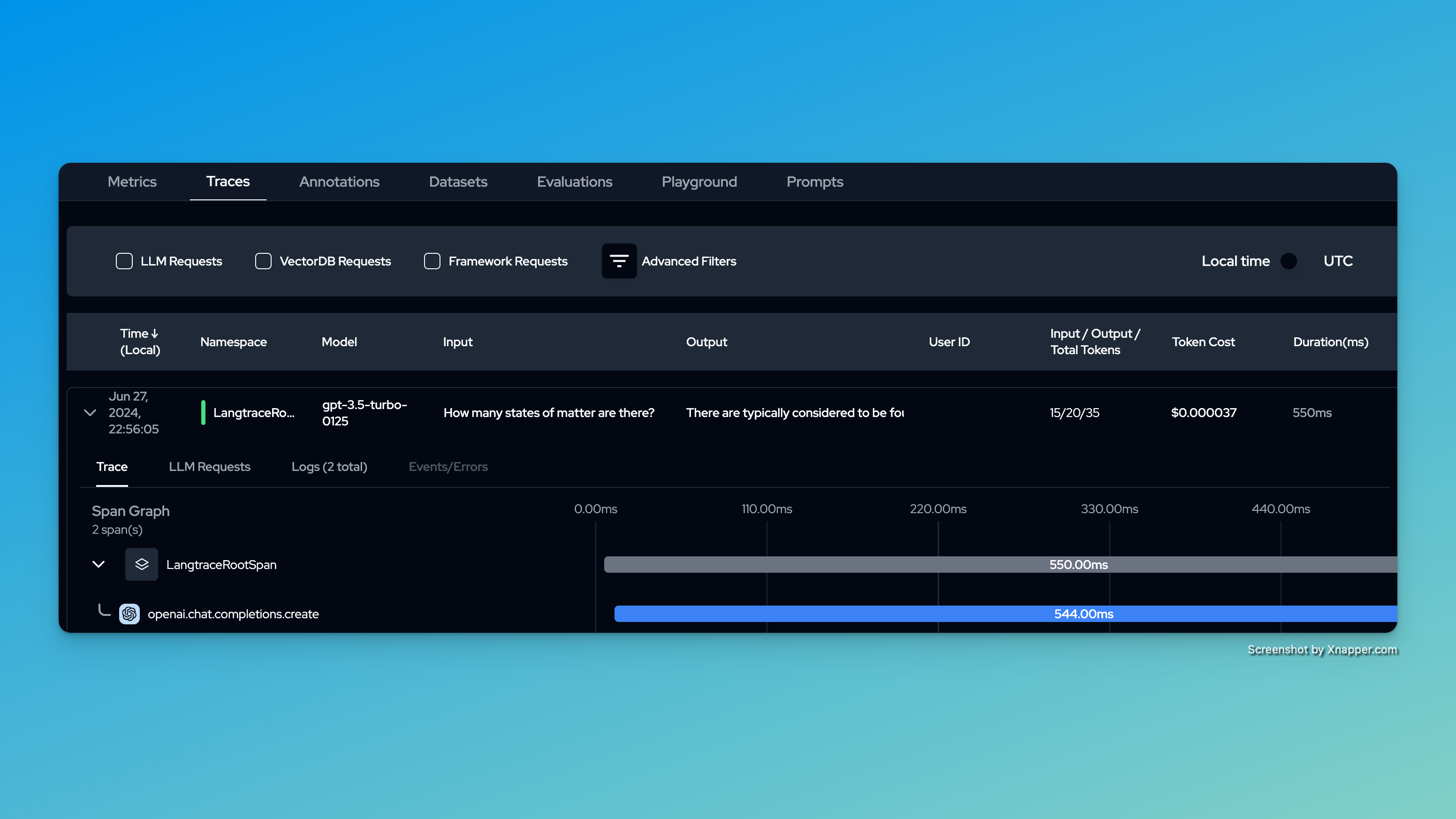
After setting up Langtrace and running your application, your traces will be automatically sent to Langtrace Cloud, where you can view and analyze them on the dashboard.
### Example: Sending Traces from an OpenAI Application
Here's an example of how to send traces from an LLM application using the OpenAI API. This example demonstrates how to use the Langtrace SDK to send traces from an OpenAI completion request.
Make Sure to pip or npm install the required packages before running the code.
```bash theme={null}
pip install --upgrade langtrace-python-sdk openai
```
```bash theme={null}
npm install @langtrase/typescript-sdk openai
```
```python Python theme={null}
from langtrace_python_sdk import langtrace, with_langtrace_root_span
from openai import OpenAI
langtrace.init(
api_key="")
@with_langtrace_root_span()
def example():
client = OpenAI()
response = client.chat.completions.create(
model="gpt-3.5-turbo",
messages=[
{
"role": "system",
"content": "How many states of matter are there?"
}
],
)
print(response.choices[0].message.content)
example()
```
```javascript Javascript theme={null}
import * as Langtrace from "@langtrase/typescript-sdk";
import OpenAI from "openai";
Langtrace.init({
api_key: "",
});
const openai = new OpenAI();
async function example() {
const completion = await openai.chat.completions.create({
model: "gpt-3.5-turbo",
messages: [
{
role: "system",
content: "How many states of matter are there?",
},
],
});
console.log(completion.choices[0]);
}
example().then(() => {
console.log("done");
});
```
Run the code snippet as shown below:
```python Python theme={null}
export OPENAI_API_KEY=""
python main.py
```
```javascript Typescript theme={null}
export OPENAI_API_KEY=""
node main.js
```
After setting up Langtrace and running your application, your traces will be automatically sent to Langtrace Cloud, where you can view and analyze them on the dashboard.
 ## Next Steps
Now that you've set up Langtrace and are sending traces, you can:
1. **View Your Traces**: Log in to your Langtrace Cloud account to view and analyze the traces you've sent.
2. **Customize Your Tracing**: Explore adding custom attributes or spans to capture more specific data about your LLM operations.
3. **Integrate with Your Workflow**: Consider how you can use the insights from your traces to optimize your LLM applications.
4. **Explore Advanced Features**: Check out our other guides to learn about features like:
* [Adding custom attributes](/tracing/additional_attributes)
* [Grouping traces](/tracing/group_traces)
* [Integrating user feedback](/tracing/trace_user_feedback)
Remember, the more you use Langtrace, the more insights you'll gain into your
LLM applications' performance and behavior.
## Troubleshooting Common Issues
If you encounter problems while setting up or using Langtrace, here are solutions to some common issues:
Ensure you've copied the full API key correctly. Verify that it's either:
* Set as an environment variable named `LANGTRACE_API_KEY`
* Passed directly to `Langtrace.init()` as shown in Step 2
If the issue persists, try regenerating your API key in the Langtrace dashboard.
If your traces aren't showing up in the Langtrace dashboard:
1. Check your network connectivity
2. Verify that your application has permission to make outbound connections
3. Ensure you're looking at the correct project in the dashboard
4. Wait a few minutes, as there might be a slight delay in trace processing
You can enable console logging to verify if traces are being sent:
```typescript TypeScript theme={null}
Langtrace.init({
api_key: '',
write_spans_to_console: true
})
```
```python Python theme={null}
langtrace.init(
api_key='',
write_spans_to_console=True
)
```
If you're seeing import errors:
1. Confirm that you've installed the correct version of the SDK for your programming language
2. Verify that the SDK is compatible with your project's dependencies
3. Try reinstalling the SDK:
```bash npm theme={null}
npm uninstall @langtrase/typescript-sdk
npm install @langtrase/typescript-sdk
```
```bash pip theme={null}
pip uninstall langtrace-python-sdk
pip install langtrace-python-sdk
```
If automatic instrumentation for supported LLM libraries isn't working:
1. Ensure that you've initialized Langtrace before importing any LLM libraries
2. Check that you're using a supported version of the LLM library
3. Verify that the LLM library is included in the `instrumentations` option (TypeScript SDK only):
```typescript theme={null}
import * as openai from 'openai';
Langtrace.init({
api_key: '',
instrumentations: { openai }
})
```
If you're still experiencing issues after trying these solutions, please contact our [support team](mailto:support@langtrace.ai).
## Next Steps
Now that you've set up Langtrace and are sending traces, you can:
1. **View Your Traces**: Log in to your Langtrace Cloud account to view and analyze the traces you've sent.
2. **Customize Your Tracing**: Explore adding custom attributes or spans to capture more specific data about your LLM operations.
3. **Integrate with Your Workflow**: Consider how you can use the insights from your traces to optimize your LLM applications.
4. **Explore Advanced Features**: Check out our other guides to learn about features like:
* [Adding custom attributes](/tracing/additional_attributes)
* [Grouping traces](/tracing/group_traces)
* [Integrating user feedback](/tracing/trace_user_feedback)
Remember, the more you use Langtrace, the more insights you'll gain into your
LLM applications' performance and behavior.
## Troubleshooting Common Issues
If you encounter problems while setting up or using Langtrace, here are solutions to some common issues:
Ensure you've copied the full API key correctly. Verify that it's either:
* Set as an environment variable named `LANGTRACE_API_KEY`
* Passed directly to `Langtrace.init()` as shown in Step 2
If the issue persists, try regenerating your API key in the Langtrace dashboard.
If your traces aren't showing up in the Langtrace dashboard:
1. Check your network connectivity
2. Verify that your application has permission to make outbound connections
3. Ensure you're looking at the correct project in the dashboard
4. Wait a few minutes, as there might be a slight delay in trace processing
You can enable console logging to verify if traces are being sent:
```typescript TypeScript theme={null}
Langtrace.init({
api_key: '',
write_spans_to_console: true
})
```
```python Python theme={null}
langtrace.init(
api_key='',
write_spans_to_console=True
)
```
If you're seeing import errors:
1. Confirm that you've installed the correct version of the SDK for your programming language
2. Verify that the SDK is compatible with your project's dependencies
3. Try reinstalling the SDK:
```bash npm theme={null}
npm uninstall @langtrase/typescript-sdk
npm install @langtrase/typescript-sdk
```
```bash pip theme={null}
pip uninstall langtrace-python-sdk
pip install langtrace-python-sdk
```
If automatic instrumentation for supported LLM libraries isn't working:
1. Ensure that you've initialized Langtrace before importing any LLM libraries
2. Check that you're using a supported version of the LLM library
3. Verify that the LLM library is included in the `instrumentations` option (TypeScript SDK only):
```typescript theme={null}
import * as openai from 'openai';
Langtrace.init({
api_key: '',
instrumentations: { openai }
})
```
If you're still experiencing issues after trying these solutions, please contact our [support team](mailto:support@langtrace.ai).